Agentic Browser Usage
🚧 Video tutorial is in progress.
What is Agentic Browser Usage in Fabric?
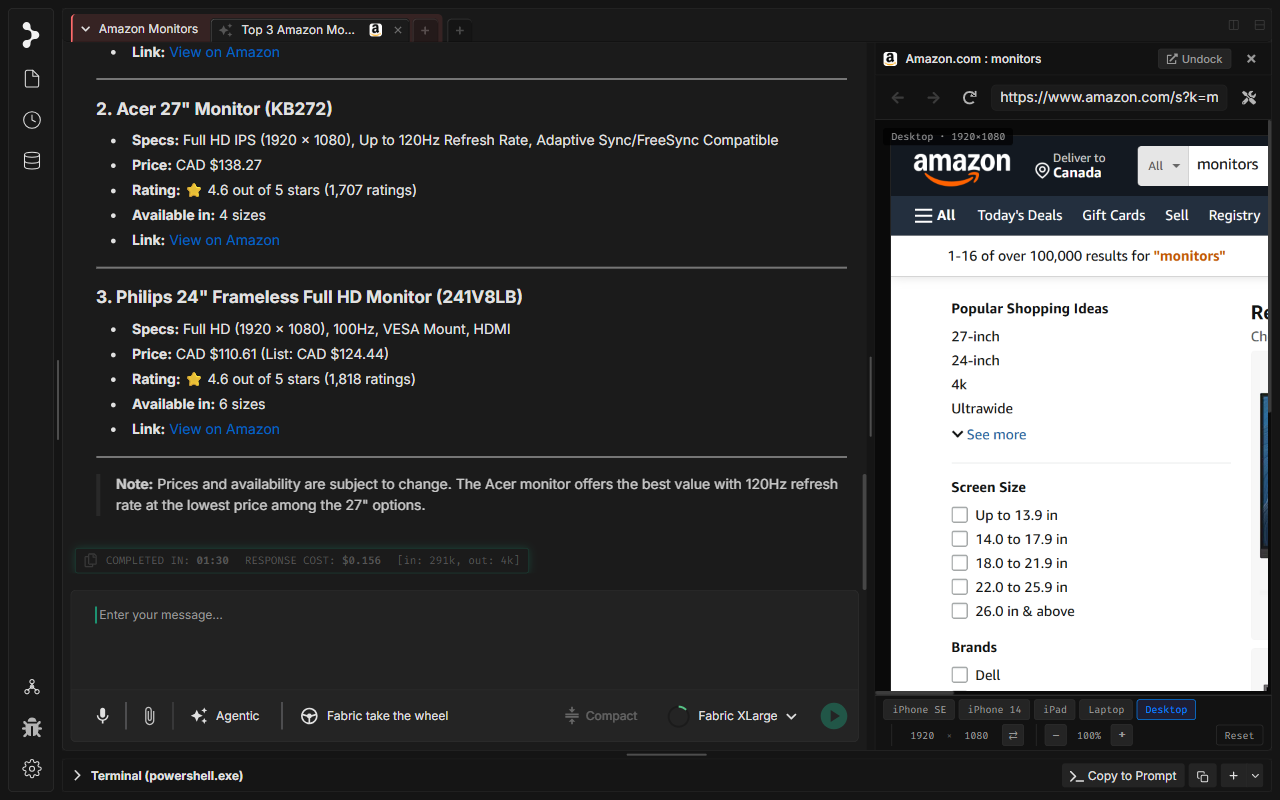
The Agentic Browser in Fabric allows the AI assistant to browse the web, search databases, and extract structured information directly on your behalf. Rather than manual copy-pasting, the agent can programmatically open pages, execute DOM scraping scripts, take snapshots, and compile findings directly back into your chat history.
When to use Agentic Browser Usage
Use the agentic browser in Fabric when you want the AI assistant to:
- Perform Market or Product Research: Let the agent search online stores (like Amazon) to compare pricing, specs, and reviews.
- Extract Data from Sites: Have the agent crawl listings, documentation tables, or API endpoints.
- Automate Multi-step Workflows: Allow the agent to interact with forms, click selectors, and follow multi-page sequences to gather data.
How to use Agentic Browser Usage
Step 1: Select an Agentic Model
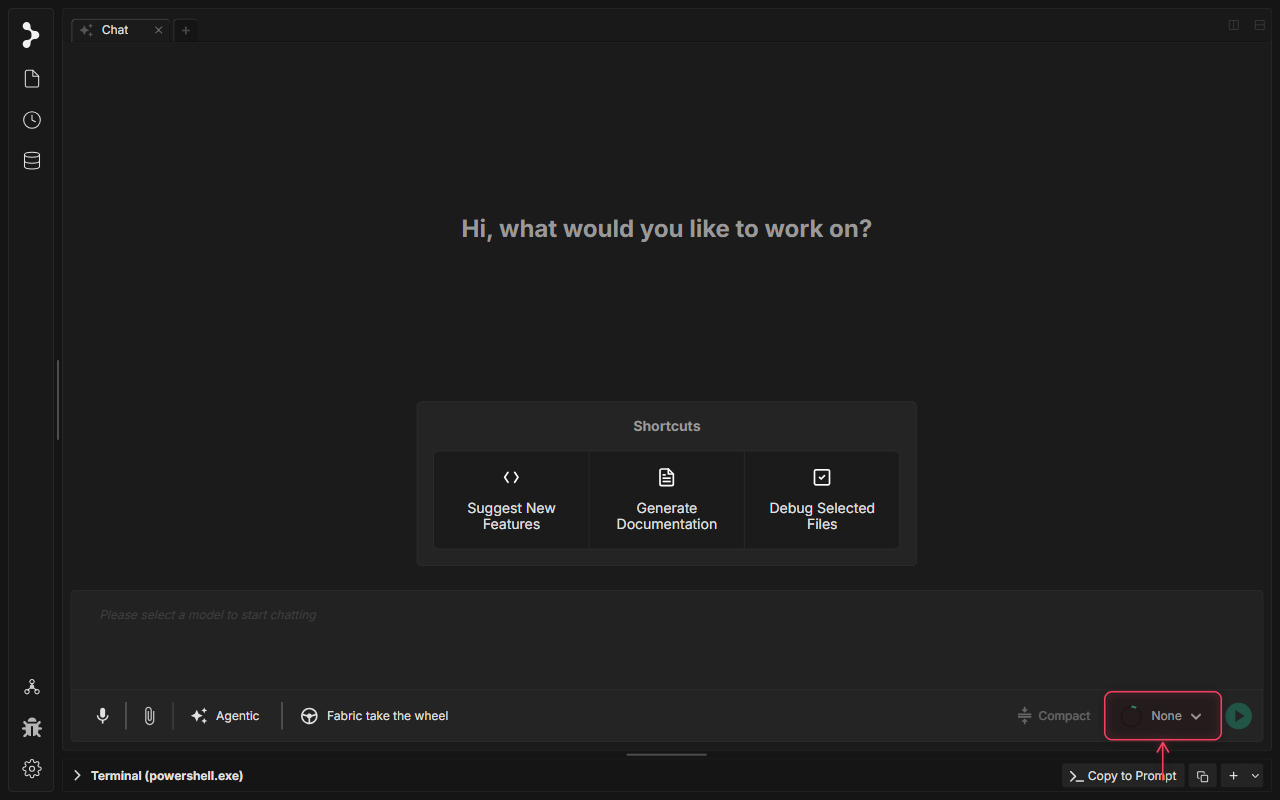
To enable agentic tool use, click the main model selector in the chat toolbar.
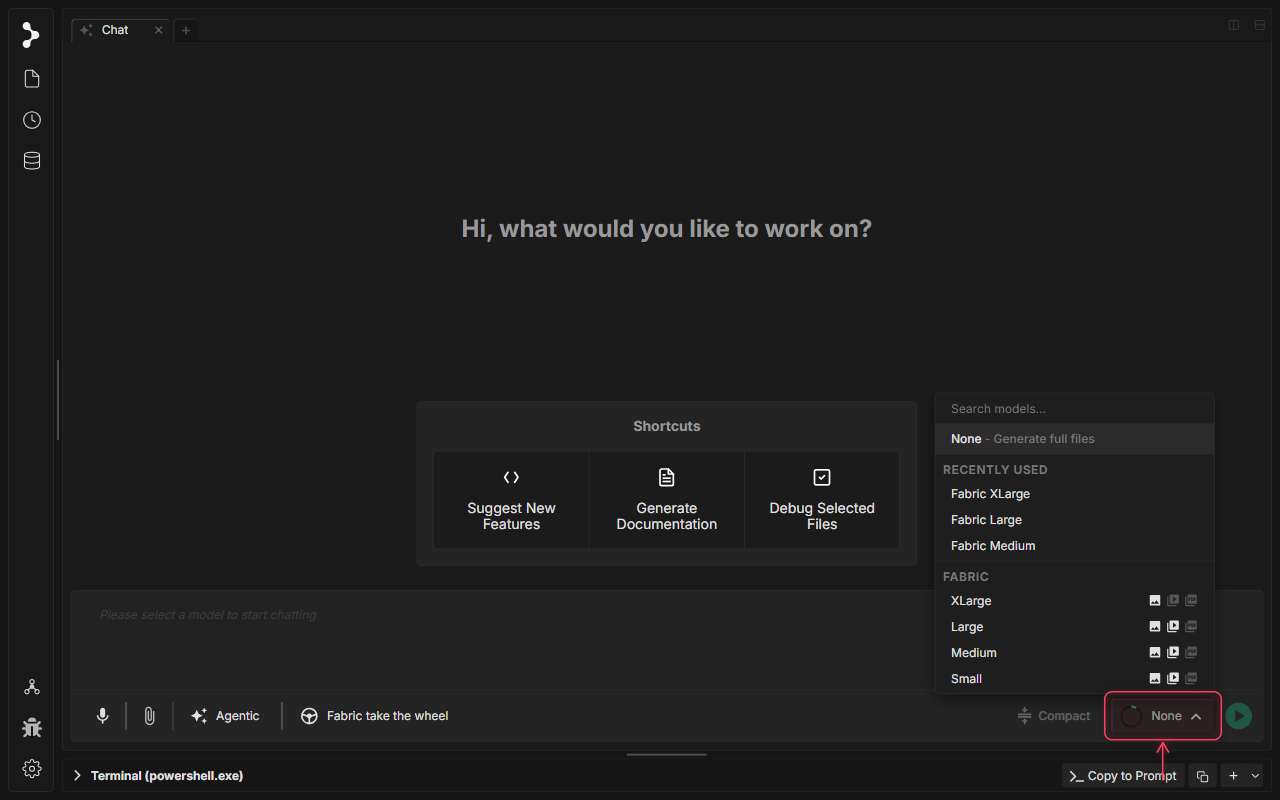
Step 2: Select Fabric XLarge Model
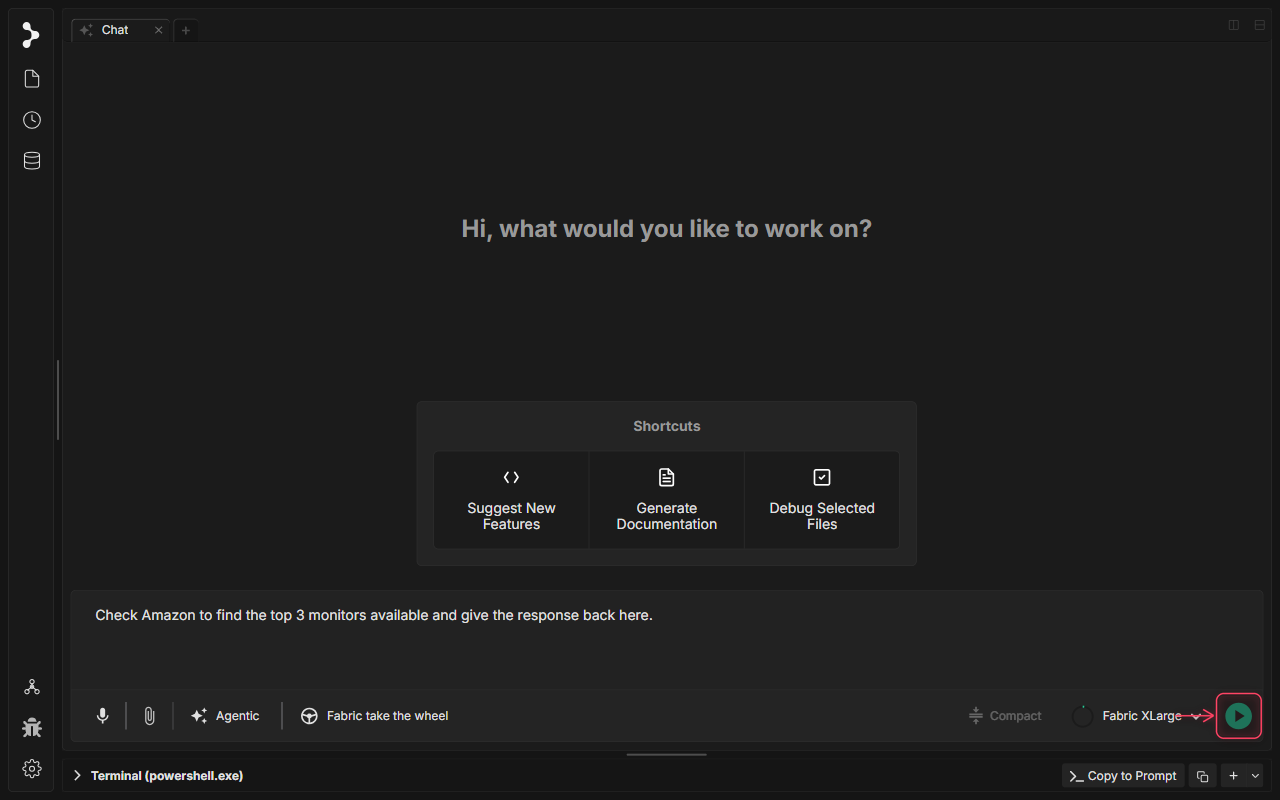
Choose the 'Fabric XLarge' model (or any model supporting browser tool execution) to enable autonomous web browsing.
Step 3: Submit a Browsing Prompt
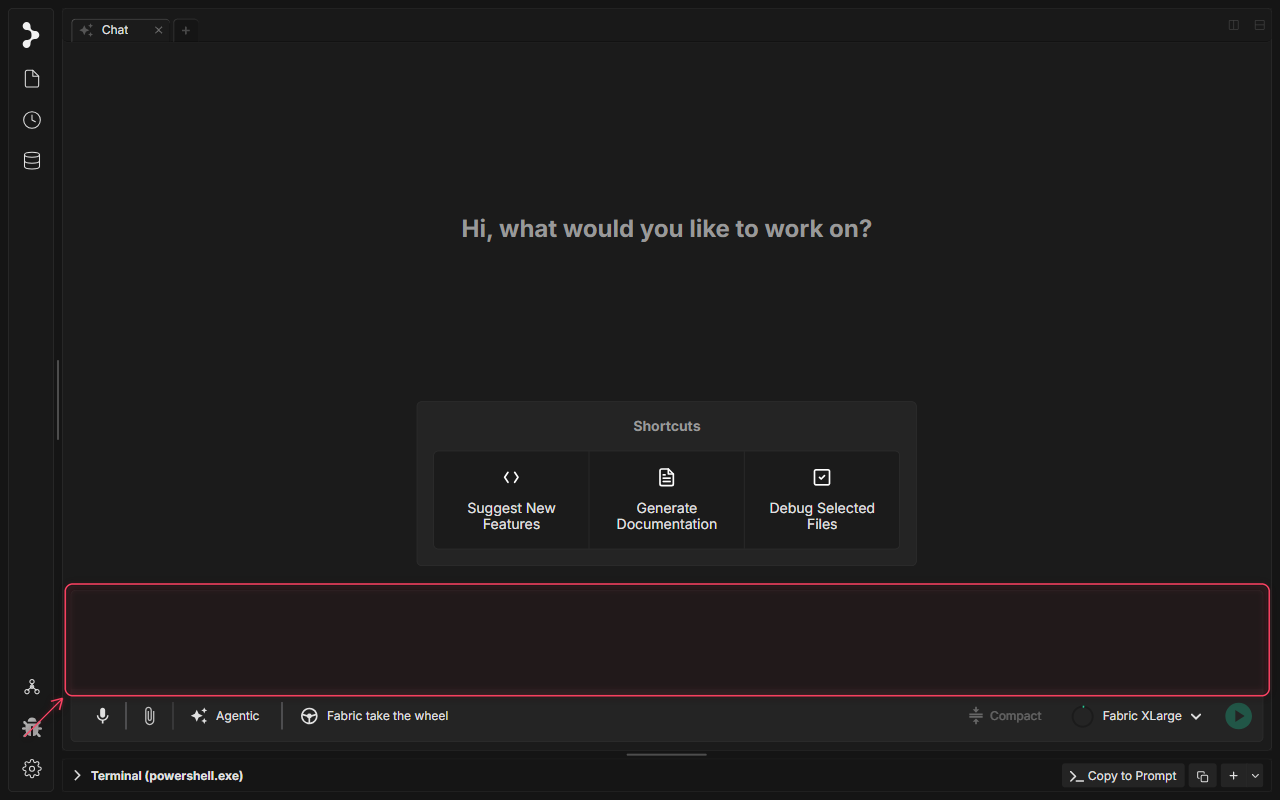
Ask the agent to check Amazon for specific information, such as finding the top 3 monitors available. Type the request in the chat composer.
Step 4: Send the Request
Press Enter or click Send to submit the prompt. Fabric will spawn browser tools, open a split-pane webview, and begin executing navigation and scraping scripts.
Step 5: Await and Read Consolidated Results
Fabric automatically handles web page interaction under the hood. Once complete, it consolidates the scraped product listings and presents the top 3 monitors directly in the chat.