Basic Functionality
A quick reference for the core interactions in Fabric.
Opening a Project
Fabric works on a folder, not individual files. The first thing to do is point it at your project.
On the welcome screen, click Open Project Folder and select your project's root directory from the system picker. Fabric will index the files and make them available in the file browser and as context for the AI.
You can switch to a different project at any time by clicking the folder icon at the top of the left sidebar.
Chatting with the AI
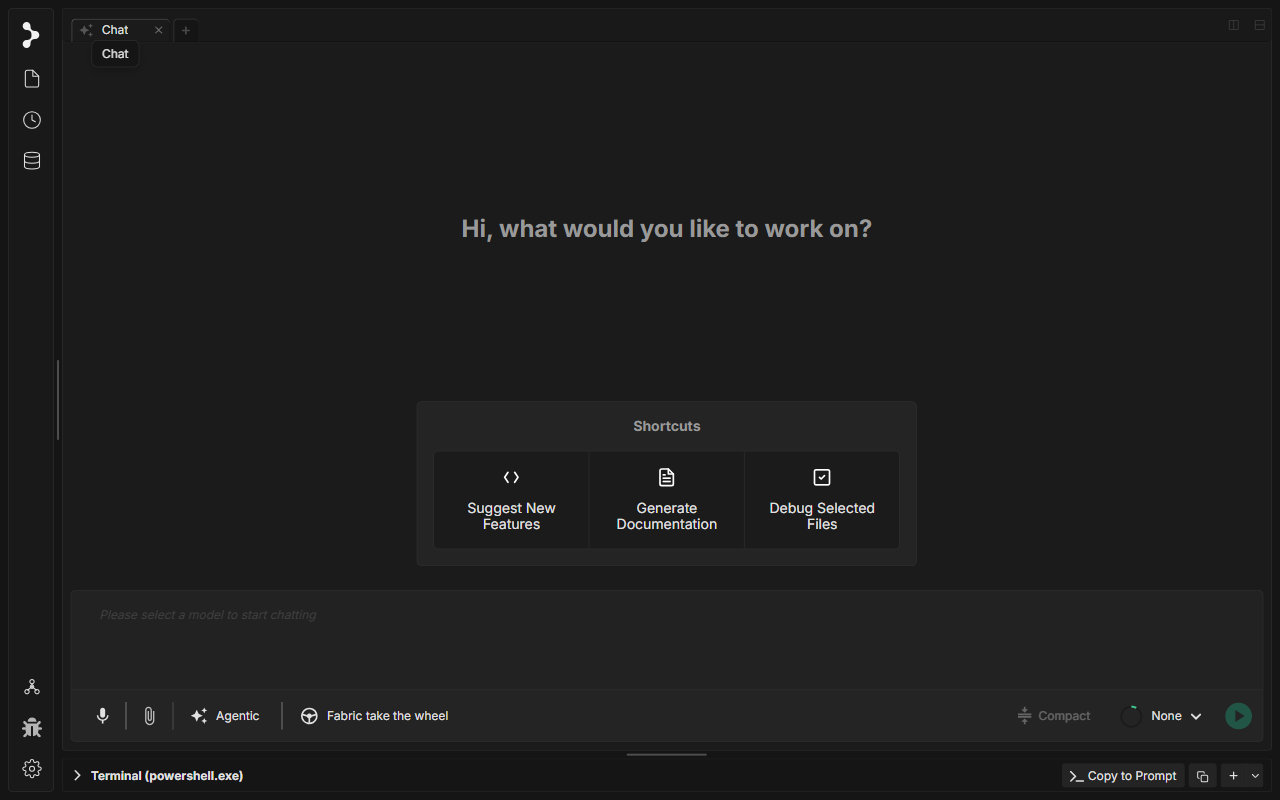
The bottom bar is your main workspace. Here's what each part does:
- Text area — Type your message here. Press
Enterto send. UseShift Enterfor a new line. - Model selector — The dropdown on the right (
Noneuntil configured). Select the AI model you want to use for this conversation. - Agentic mode — Gives the AI access to tools: reading and editing files, running terminal commands, searching the web. Use this for tasks that require actual code changes.
- Fabric take the wheel — A fully autonomous mode where Fabric drives the task end-to-end with minimal interruptions.
- Compact — Summarizes older messages to free up context window space when conversations get long.
- Send — The green button, or just press
Enter.
You need a model selected before you can send a message. Go to Settings → Models to add an API key.
Adding a File to Your Chat
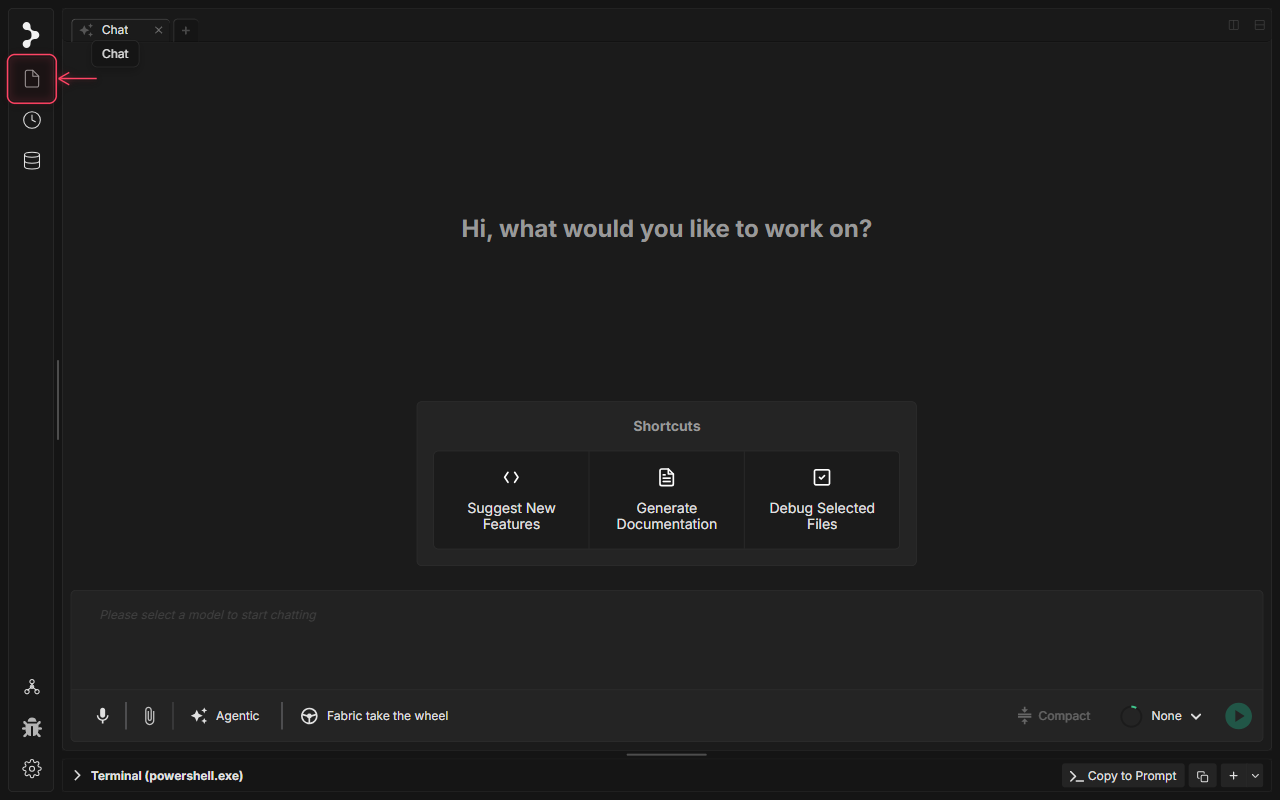
There are three ways to add files as context for the AI:
From the file browser — Click the file icon in the left sidebar (highlighted above) to open the file panel. Click any file to open it in the editor. Right-click a file and choose Add to Chat to attach it as context.
Via the attachment button — Click the paperclip icon (🖇) in the bottom-left of the chat input bar. A file picker opens — select any file from your machine. Supported types include code files, text, PDFs, and images.
Via drag and drop — Drag any file from your OS file manager directly onto the chat input area. It will appear as a chip above the text field.
Attached files appear as chips in the input. Click the × on a chip to remove a file before sending.
Voice Input
Fabric has built-in push-to-talk dictation. Speak naturally — Fabric transcribes your words into the chat input, where you can review and edit before sending.
| Method | Mac | Windows / Linux |
|---|---|---|
| Push-to-talk (hold) | Hold Right ⌥ |
Hold Right Alt |
| Toggle mic on/off | Click the mic icon in the bottom-left of the chat bar | Same |
While you're speaking, a waveform animation appears in the input area. Release the key (or click the mic again) to stop recording. The transcript appears in the text field — edit it if needed, then press Enter to send.
Working with Tabs
Each tab in Fabric is an independent chat session with its own conversation history and file context.
To create a new tab — Click the + button in the tab bar at the top of the window. Use ⌘ W / Ctrl W to close a tab.
When to use multiple tabs:
- Run a long agentic task in one tab while asking quick questions in another.
- Keep separate tabs for separate features or branches you're working on in parallel.
- Open a dedicated tab for research (browsing, reading docs) so it doesn't clutter your coding context.
Tabs are independent: stopping generation or compacting context in one tab does not affect others.